

Sales
- Author
- Clovis de Bontin
- Published
- 5 October 2026
- Reading time
- 3 min read
Confirm a sales order when the customer signs the quotation
How to automatically confirm a quotation into a sales order in Odoo using Odoo Sign
In Odoo, you can automate the confirmation of a sales order by allowing your customer to sign the quotation from the portal view of the quotation.
In this article, I'll walk you through the configuration of the Sign module, and the whole process of creating a quotation. I'll also show you what steps the customer must take to confirm the quotation into a sales order.
1- Install And Configure The Sign Module
The first step is to install the Sign module. Go in the Apps section, search for "Sign", and check if it installed or not. If it isn't click activate, and wait to be redirected to the main menu.
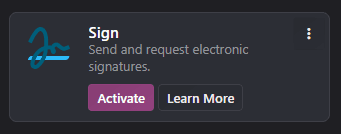
Once the Sign module is installed, go in the settings of the Sales app, and look for the item "Online Signature", ensure it is activated.
This is basically it for the configuration.
2- Create And Send A Quotation
In the Sales module, create a new quotation. Add a customer, and some items to fill it. In the "Other Info" tab, check that "Online signature" is toggled on.
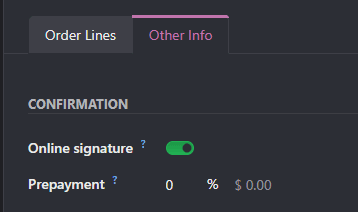
This toggle can be activated on quotation templates as well.
From here, you can send the quotation, and the customer will have the option to view it from the portal and sign it.
3- The Customer Signs And The Quotation Becomes A Sales Order
Provided that the email server has been properly configured, your customer has already received the quotation by mail, and it will look something like that (depending on your email template):
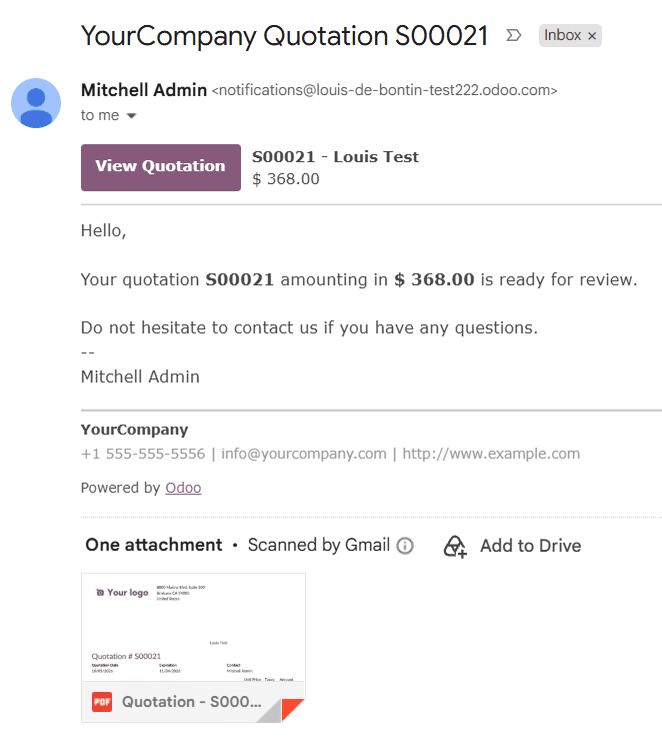
At the top of the email, the button "View Quotation" redirects the customer to a portal view of the quotation, where he can interact with it. He can see its status, download it, contact the salesperson, reject the quotation, and most importantly, he can "Accept & Sign" it.
Once the customer accepted and signed the quotation from this interface, the order will be confirmed in Odoo's backend.

Conclusion
That's it for the process of automatically validating a quotation into a sales order in Odoo.
I sincerely hope this was helpful, and if you have any remark, suggestion or question, you can email me at louis@cdb.solutions or DM me on LinkedIn.
Thank you,
Clovis
Next step
See this in practice
Book a free demo. The technical partner for your country shows the apps that fit, at no charge.
Canonical URL: https://www.cdb.solutions/articles/odoo-quotation-online-signature
Next step
Book a free demo
Tell us the country and the operation. The technical partner for your country shows Odoo against your process, at no charge.
+33 7 69 45 83 27UK with SofthealerEverywhere else with AppNvent
Free demo
Put this against your own operation
Country, industry and company size. The technical partner scopes the work and holds the agreement.
Country chooses the partner. The UK is implemented with Softhealer. Everywhere else, with AppNvent.
The demo is specific. Industry and company size tell the technical partner which apps to show you.
No charge, no obligation. Scoping and any agreement come later, and only if you want them.